

Google Docs Dark Mode: Which Extensions Actually Work
Google Docs still has no dark mode on desktop web. Most extensions darken the toolbar and leave the page glowing white, and there is a technical reason for that. Here is what actually works.
Google Docs still has no native dark mode on desktop web. There is no setting to turn on, and Google has not said it is coming.
So you need an extension. But most of them darken the toolbar and sidebars while leaving the actual page glowing white, which is the opposite of the point, and almost no guide explains why that happens.
Here is the reason, and the three approaches that do work.
Why Most Extensions Leave the Page White
In May 2021 Google moved Docs from HTML-based rendering to a canvas-based renderer, and warned at the time that it might break extensions.
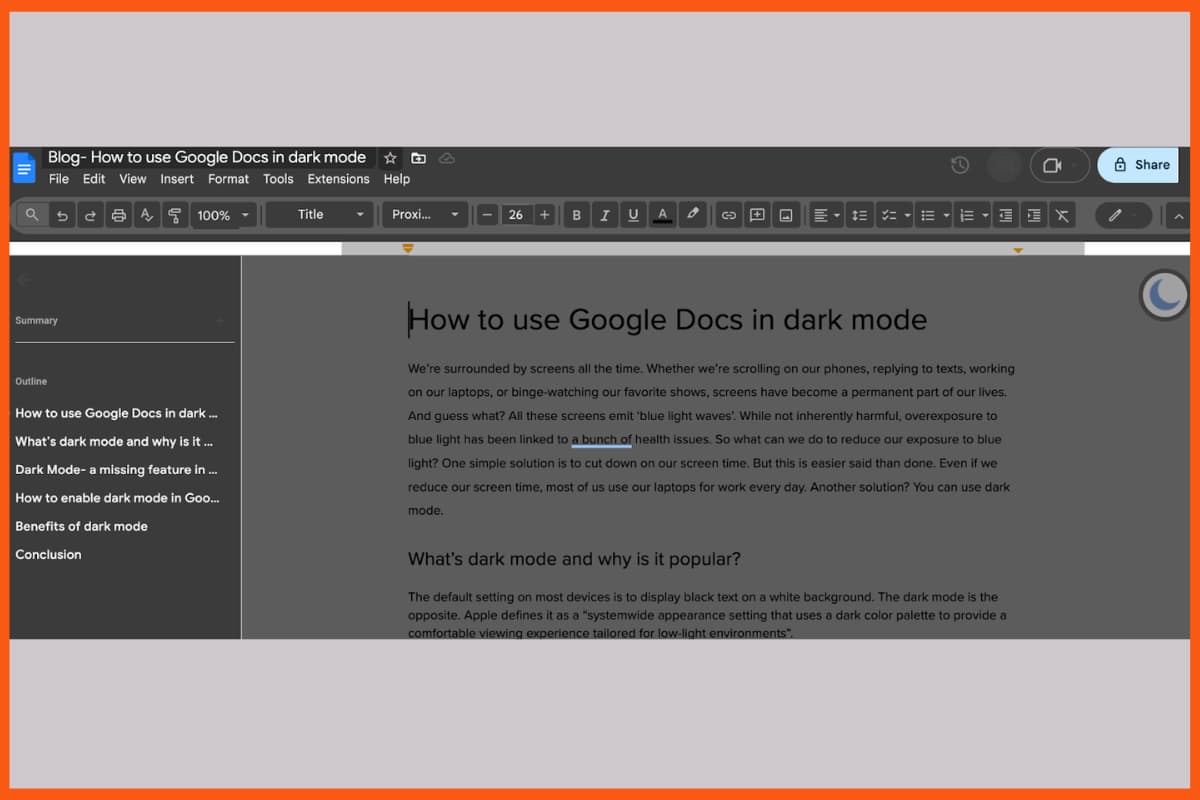
That change is the whole story. A browser extension applies dark mode by rewriting a page's HTML and CSS. Canvas content is not HTML. It is pixels drawn onto a single element, so there is no text node or background colour for an extension to reach in and recolour. Extensions can still restyle everything around the document, because the toolbar, menus and sidebars are ordinary HTML, but the page itself is outside their reach. That is why you install a well-reviewed dark mode extension, reload Docs, and end up with a dark frame around a bright white sheet of paper. The extension is working exactly as designed. It simply cannot touch the part you care about.
Any guide that does not mention this is guessing.
The Extensions Worth Trying
Because of the canvas issue, results vary by extension and change as both Google and the extension authors ship updates. These are the ones worth your time, and I would test in this order.
- Dark Reader. The most widely used option and the one I would start with. It is free, works across Chrome, Firefox, Edge, Safari and Opera, and gives you brightness, contrast and sepia controls so you can tune it rather than accept one fixed theme. It also covers Sheets, Slides and Drive, so you are not installing something different for each app.
- Google Docs Dark Mode. A Docs-specific extension rather than a general one. Purpose-built extensions sometimes handle Docs better than universal ones precisely because they only have one site to get right.
- Night Eye. Builds site-specific themes instead of applying one global filter, which tends to produce cleaner results on complex apps. The free tier limits you to five sites at a time, which is fine if Docs is the only place you need it.
- Midnight Lizard. A full colour-theme engine rather than a simple inverter. More configuration than most people want, but the right tool if the others produce something unreadable.
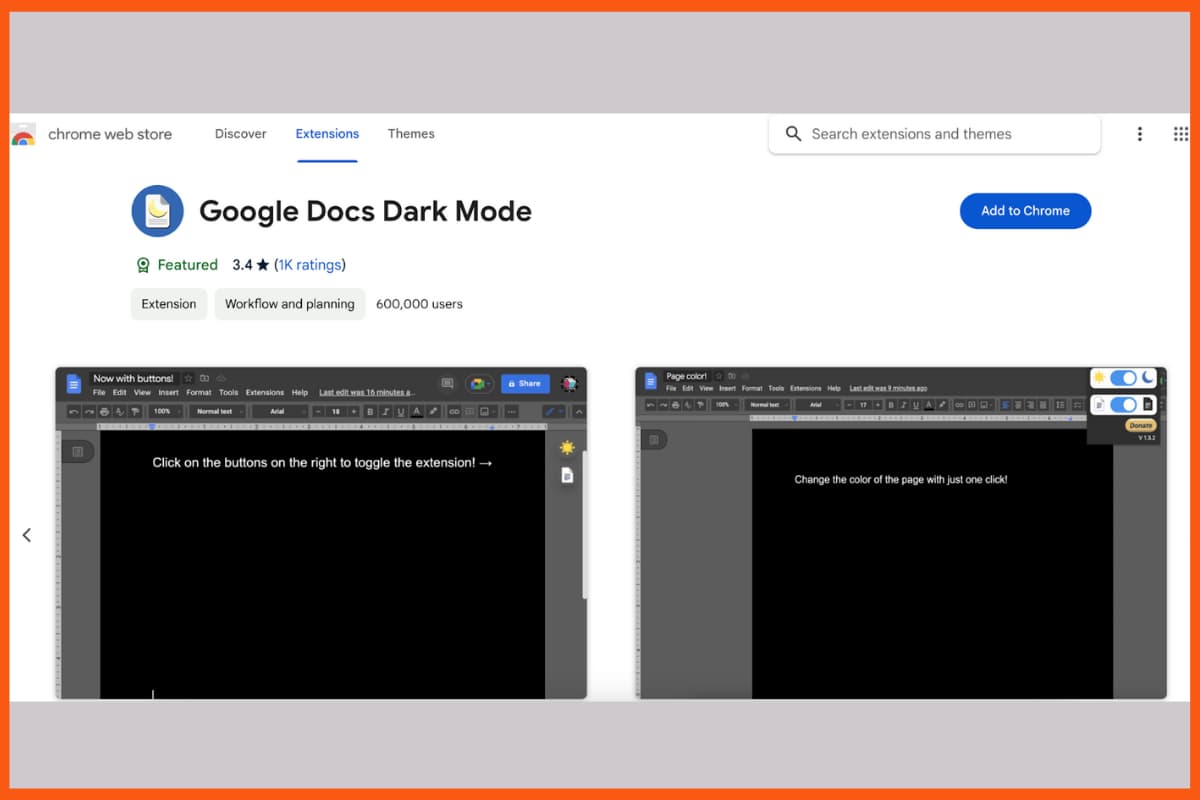
Installing any of them takes about a minute: open the Chrome Web Store listing, click Add to Chrome, confirm with Add extension, then reload your Google Docs tab. Most put an icon in the toolbar so you can toggle dark mode off mid-session without uninstalling anything. If you are building out your browser more broadly, we have separate roundups of Chrome extensions that boost productivity and the best Chrome extensions for students.
Chrome's Built-In Force Dark Flag
If extensions are not getting you there, Chrome has an experimental setting that forces dark rendering on every site. Paste chrome://flags/#enable-force-dark into the address bar, enable it, and relaunch.
It applies browser-wide rather than to Docs alone, so expect some sites to look wrong. It is a blunt instrument, but it operates at a different level from extensions and sometimes succeeds where they fail. No installation, and you can switch it off the same way.
The Page Colour Trick You Should Avoid
Plenty of tutorials tell you to open File, then Page setup, and set Page color to something dark. It does darken the page, which is why it keeps getting recommended.
Do not do this on anything you share.
Page colour is document formatting, not a display preference. You are editing the file itself, so every collaborator sees your dark page, and it carries through to printing and to exported PDFs. Your client opens the proposal and gets a charcoal background. Worse, your existing black text stays black against the new dark background, so you then have to recolour all the text to read it, which compounds the problem for everyone else.
It is a reasonable trick for a private scratch document and a bad idea for anything else.
On Mobile You Do Not Need Any of This
The mobile apps have had proper dark mode for years. Open the Google Docs app, go to the menu, then Settings, then Theme, and pick Dark. It applies to the app and to the document, with no extension and none of the sharing side effects.
The gap is desktop web only, which is worth knowing before you spend an evening hunting for a setting that does not exist. Dark mode aside, the rest of the suite is covered in our guide to Google Workspace tools, and there are more in our list of useful Google apps.
FAQs
Does Google Docs have a dark mode?
On mobile, yes. The Android and iOS apps have a built-in Theme setting with a Dark option. On desktop web there is no native dark mode and no setting to enable, so you need a browser extension, Chrome's force-dark flag, or a workaround.
What is the best extension for Google Docs dark mode?
Dark Reader is the most widely used and the best place to start, because it is free, works across Chrome, Firefox, Edge, Safari and Opera, and lets you adjust brightness and contrast. Docs-specific options like Google Docs Dark Mode, plus Night Eye and Midnight Lizard, are worth trying if Dark Reader does not render the page the way you want.
Why does my dark mode extension only darken the toolbar?
Because Google moved Docs to canvas-based rendering in May 2021. Extensions apply dark mode by altering a page's HTML and CSS, but canvas content is drawn as pixels rather than HTML elements, so there is nothing for the extension to restyle. The toolbar and sidebars are still ordinary HTML, which is why those go dark while the page does not.
Should I change the Google Docs page colour to black?
Only on private documents. Page colour is document formatting rather than a display setting, so collaborators see the change and it affects printing and exported PDFs. Your existing black text also stays black on the dark background, so it becomes unreadable until you recolour it.