

How to Use Acrobat Studio for AI-Powered Document Review and Workflow Automation
learning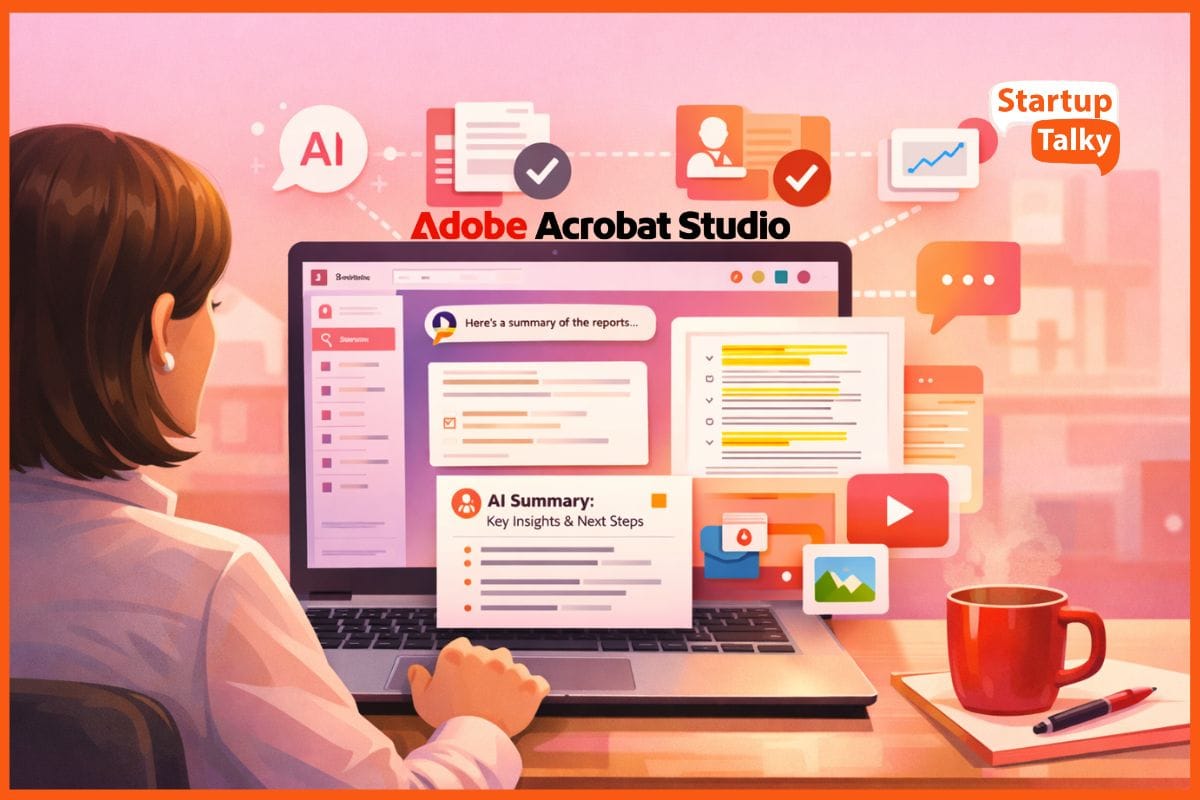
If you've ever spent hours hunting through email threads for the latest contract version, or manually compared two PDFs to find what changed, you know the pain of traditional document workflows. Document review shouldn't feel like detective work, but for most teams, it still does.
Adobe's answer is Acrobat Studio, an AI-powered workspace that combines PDF editing, intelligent document analysis, and content creation in one platform. With over 400 billion PDFs opened in Adobe products each year and 750 million monthly active users, Adobe is betting that AI can transform how we work with documents.
In this guide, you'll learn how to use Acrobat Studio for AI Document Review, set up collaborative AI Workspaces, and automate your document workflows from start to finish.
What Is Acrobat Studio?
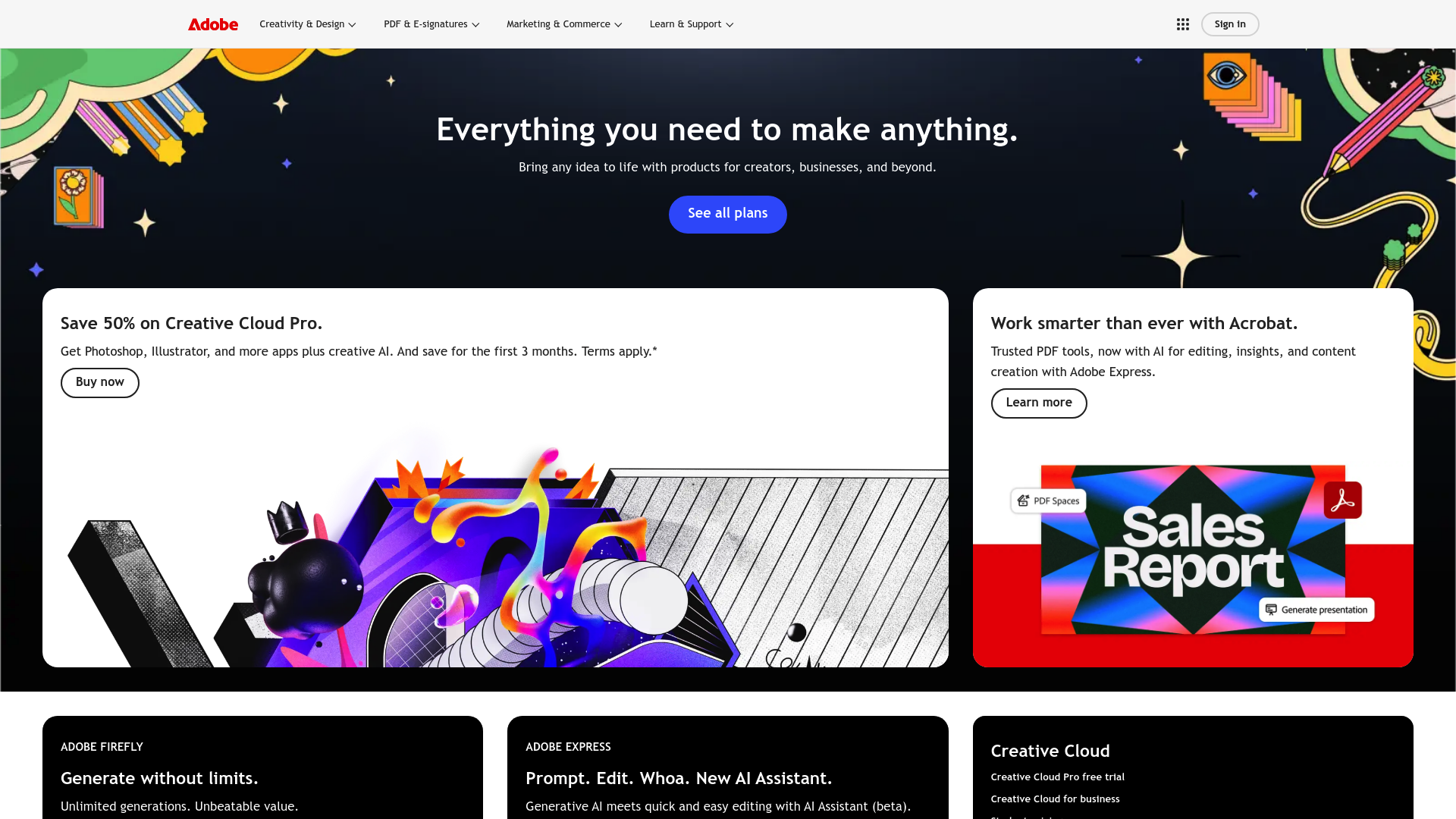
Acrobat Studio is a subscription plan from Adobe designed as a next-generation document platform that integrates four core components into a single AI workspace.
- PDF Spaces act as AI-powered knowledge hubs where you can combine up to 100 files, web links, and documents. The AI Assistant organizes these into insight cards and lets you query across the entire collection.
- AI Assistant functions as a Smart document Assistant that understands context, generates summaries, and provides cited answers linked directly to your source documents. You can choose from prebuilt personas like Analyst or Instructor, or create custom AI Assistants tailored to specific tasks.
- Adobe Express brings design capabilities directly into your document workflow, letting you generate presentations, create custom images with Adobe Firefly, and access over 500,000 professional templates.
- Acrobat Pro provides the underlying PDF editing, e-signature, and security features that businesses have relied on for decades.
Acrobat Studio is priced at INR 1,357 per month (billed annually), positioning it as a premium solution for teams serious about document productivity. Importantly, Adobe promises a Secure AI Workspace where your content is never used to train their AI models.
Step-by-Step Guide: Setting Up Your AI-Powered Document Workflow
Let's walk through how to implement Acrobat Studio for streamlining document review and collaboration in your organization.
Step 1: Set Up Your AI Workspace
Start by creating a PDF Space for your project or team. Think of this as your central command center for document work.
Upload your documents directly into the space. Acrobat Studio accepts PDFs, Microsoft 365 files (Word, Excel, PowerPoint), and web links. At launch, PDF Spaces supports up to 100 items, which is sufficient for most project-based work but may require splitting larger document collections across multiple spaces.
Once uploaded, the AI Assistant automatically generates insight cards for each document, summarizing key points and making content searchable without opening individual files. This is a genuine time saver for managing files, especially when dealing with large document libraries.
Set permissions based on your collaboration needs. You can invite team members to view, comment, or edit within the space. Shared PDF Spaces become your team's single source of truth, eliminating version control headaches.
Step 2: Use AI for Document Review
Here's where Acrobat Studio shines for AI for reviewing documents. Instead of manually reading through every page, you can have a conversation with your documents.
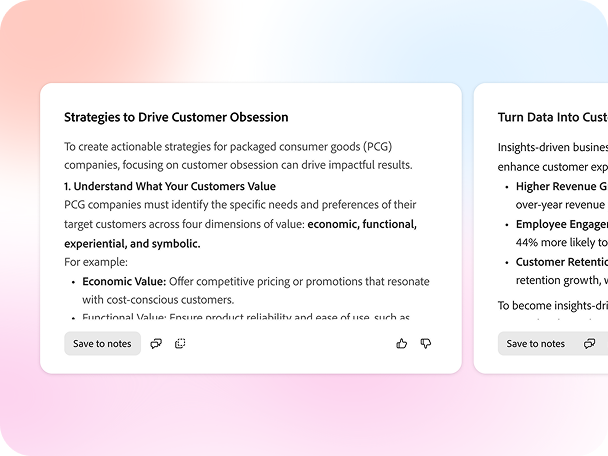
Activate the AI Assistant and start asking questions in natural language. "What are the key terms in this contract?" or "Find all mentions of liability clauses across these five agreements." The AI Assistant processes your request and returns answers with clickable citations linking directly to the source text.
For automated review workflows, use the Assistant to detect inconsistencies across multiple documents. Upload your standard template and a negotiated version, then ask the AI Assistant to highlight differences. This transforms hours of manual comparison into minutes of AI-assisted analysis.
The cited responses feature is particularly valuable for compliance and legal work. Every AI-generated insight includes a reference to the exact sentence or paragraph in your document, making verification straightforward and auditable.
Step 3: Summarizing Documents with AI
One of the most practical applications is Summarizing documents for quick consumption. The AI Document Assistant can generate executive summaries, extract action items, or identify key decisions from lengthy reports.
For multi-document analysis, select several files within your PDF Space and ask for cross-document insights. This works well for:
- Synthesizing market research from multiple industry reports
- Compiling interview notes into thematic summaries
- Extracting requirements from scattered documentation
The AI Assistant can tailor summary length and focus based on your needs. Want a one-paragraph executive summary? A detailed bullet-point breakdown? The AI Assistant adjusts accordingly.
This capability delivers real AI-Powered Productivity for knowledge workers who need to stay informed without drowning in documentation.
Step 4: Batch Processing Multiple PDF Files
For batch processing multiple PDF files, Acrobat Studio offers two approaches depending on your needs.
The Action Wizard (inherited from Acrobat Pro) lets you create automated sequences for repetitive tasks. Set up actions to compress, convert, or apply consistent formatting across document collections. This is ideal for standardizing document archives or preparing files for distribution.
For simpler operations, use the chat-based editing interface. Ask the AI to "remove all comments from these files" or "compress these documents for email." The AI handles the batch operation while you focus on higher-value work.
Common batch operations include:
- Converting multiple files to PDF format
- Applying consistent security settings
- Adding watermarks or headers across a document set
- Extracting text from scanned documents using OCR
Step 5: Automated Document Approvals and Collaboration
Setting up AI-Powered Collaboration for document approvals requires connecting Acrobat Studio's tools into a coherent workflow.
Start by establishing review cycles within shared PDF Spaces. Team members can add comments, annotations, and suggestions directly on documents. The AI Assistant can help summarize feedback themes when multiple reviewers provide input.
For tracking approval status, use Acrobat's built-in review tracking. You can see who has viewed documents, which comments remain unresolved, and where bottlenecks exist in your approval chain.
Integrating document workflows with existing tools is straightforward. Acrobat Studio connects with Microsoft 365, Dropbox, and other cloud storage platforms. For final approvals, Adobe's e-signature capabilities let you collect legally binding signatures without leaving the platform.
This approach to Automated document approvals reduces the email back-and-forth that typically slows down document workflows.
Step 6: AI Document Creation and Visual Content
The final step in your workflow is turning document insights into shareable content. Acrobat Studio's Adobe Express integration enables AI document creation directly from your research.
Generate presentations by selecting source documents and asking the AI Assistant to create an outline. Acrobat hands off to Adobe Express, which produces a draft presentation using professional templates. You can set the length and tone, then edit directly without regenerating from scratch.
For visual content, use Adobe Firefly to generate custom images from text prompts. Access over 500,000 templates for social posts, flyers, infographics, and more. This bridges the gap between document analysis and content distribution.
The AI creation capabilities also include podcast-style audio summaries. Upload meeting notes or research documents, and the AI generates an audio overview you can listen to during your commute or while preparing for presentations.

Key Benefits of Using Acrobat Studio
Implementing Acrobat Studio delivers several concrete advantages for document-centric teams, driven by its broader Acrobat Studio AI capabilities across document review, automation, and collaboration:
- AI-Powered Productivity: Automate repetitive document tasks like summarization, comparison, and formatting. The AI handles the routine work while you focus on analysis and decision-making.
- Secure AI Workspace: Your documents and interactions are never used to train Adobe's AI models. This matters for organizations handling sensitive or confidential information.
- Custom AI capabilities: Create specialized AI Assistants for specific roles. A legal team might build a contract analyzer, while marketing creates a campaign research assistant.
- Faster document review: Reduce review cycles from days to hours with AI-powered insights and automated comparison tools.
- Improved collaboration: Centralized PDF Spaces eliminate version confusion and provide a shared workspace for team document work.
- Cross-platform availability: Work on the web, desktop (Mac and Windows), mobile devices, or through browser extensions for Chrome and Edge.
Real-World Use Cases for Acrobat Studio
Different teams can apply Acrobat Studio's capabilities to their specific document challenges.
- Legal Teams use Acrobat Studio for contract review and comparison, due diligence document analysis, and compliance documentation management. The AI Assistant's ability to detect inconsistencies across multiple agreements saves hours of manual review.
- Marketing Departments leverage the platform for campaign research synthesis, turning scattered market research into coherent strategies. The Adobe Express integration then transforms that research into presentations and content assets.
- Startups benefit from rapid pitch deck creation from business plans, investor document preparation, and quick iteration on fundraising materials. The AI Assistant helps refine messaging based on best practices.
- Enterprise Knowledge Management teams use PDF Spaces to centralize institutional knowledge, create onboarding documentation hubs, and enable cross-departmental information sharing. The AI makes vast document libraries searchable and accessible.
For any team drowning in documents, Acrobat Studio functions as a workspace tool for documents that brings order to chaos.
How Acrobat Studio Compares to Traditional PDF Tools
Understanding the shift from traditional tools helps clarify Acrobat Studio's value proposition.
| Comparison Area | Traditional PDF Tools | Acrobat Studio |
|---|---|---|
| Static PDFs vs AI Workspace | Allows users to view and edit PDFs as static documents. | Transforms documents into an interactive AI workspace where users can query, summarize, and extract insights without reading every page. |
| Manual Review vs AI for Document Review | Requires hours of careful reading to compare contracts or analyze reports. | Uses AI-assisted review to analyze documents in minutes with cited and verifiable results. |
| Email-Based Approvals vs Automated Document Approvals | Relies on email threads, manual follow-ups, and separate tracking systems. | Provides shared spaces with built-in commenting, version control, and integrated e-signature workflows for automated approvals. |
Limitations to consider: PDF Spaces currently support only 100 items and a limited range of file types. Complex workflow automation (like conditional routing) isn't as sophisticated as dedicated workflow platforms. For teams already invested in tools like Slack, Teams, or Box, switching requires real justification.
That said, for organizations with large volumes of PDF documents that currently lack organization, Acrobat Studio offers significant productivity gains without requiring a complete workflow overhaul.
Getting Started with AI-Powered Document Workflows
Acrobat Studio represents a meaningful evolution in how teams work with documents. By combining AI-powered productivity tools with secure collaboration features, it addresses the document chaos that plagues most organizations.
The platform is best suited for:
- Business professionals managing complex document workflows
- Legal teams needing efficient contract review
- Marketing departments producing research-based content
- Startups requiring rapid document iteration
- Enterprise teams centralizing institutional knowledge
If your current document process involves too much searching, comparing, and version-checking, Acrobat Studio offers a path to streamlining document review through AI assistance.
Adobe's 32-year history with PDF gives it unique expertise in document technology. With Acrobat Studio, they're applying that expertise to the AI era, creating a future-ready workspace tool for documents that transforms how knowledge work gets done.
FAQs
How does Acrobat Studio improve AI for Document Review compared to manual methods?
Acrobat Studio uses AI Assistant to analyze documents conversationally, detect inconsistencies across multiple files, and provide cited answers linked to source text. This reduces document review time from hours to minutes while maintaining accuracy through verifiable citations.
What file types can I upload to PDF Spaces for AI-Powered Collaboration?
PDF Spaces support PDFs, Microsoft 365 files (Word, Excel, PowerPoint), and web links. Currently, spaces are limited to 100 items, which works well for project-based organization but may require splitting larger document collections.
Is Acrobat Studio a Secure AI Workspace for confidential documents?
Yes. Adobe commits that content in Acrobat Studio is never used to train their AI models. Documents, chats, and AI interactions remain protected, with all AI responses citing source documents for transparency and auditability.
Can Acrobat Studio handle batch processing multiple PDF files?
Yes. Acrobat Studio offers the Action Wizard for creating automated sequences across document collections, plus chat-based editing that lets you perform bulk operations like compression, conversion, and formatting through natural language commands.
How does AI document creation work with Adobe Express integration?
Acrobat Studio can generate presentations from source documents, create custom images using Adobe Firefly AI, and access over 500,000 templates. The AI creates outlines from your documents, then Adobe Express produces draft presentations that you can edit directly without regenerating.