

How to Create Images and Videos with Adobe Firefly: A Step-by-Step Guide
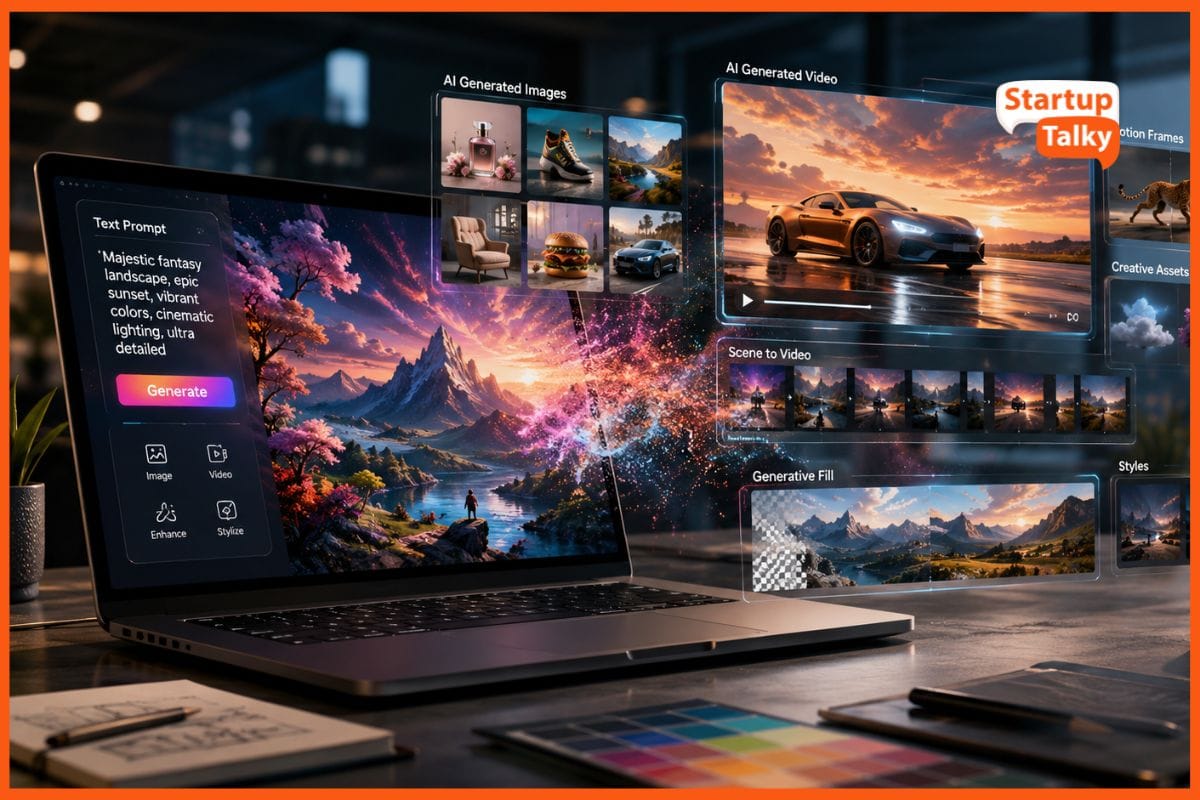
You have an idea in your head, a product shot that pops, a short clip for an Instagram Reel, a piece of b-roll to cover an awkward gap in your edit. A few years ago, getting any of that meant a camera, a studio, or hours in complicated software. Today you can describe it in a sentence and watch it appear.
That is the promise of Adobe Firefly, a standalone generative AI web app that lets you ideate, create, and communicate without any production experience. In this guide we'll walk through, step by step, how to edit images with AI and how to create a video with AI inside Adobe Firefly, plus where it fits in your everyday creative workflow.
No downloads, no plugins. Everything below happens in your browser at firefly.adobe.com.
What is Adobe Firefly?
Firefly is Adobe's home for generative AI. From a single web app you can:
- Generate images from a text prompt and edit them with AI
- Generate video from text, from a still image, or from two keyframe images
- Create vector graphics that stay clean and scalable
The thing that sets Firefly apart from the crowded field of AI tools is that it's designed to be commercially safe — trained so the output is suitable for real client and brand work, not just personal experiments. For marketers and content creators, that distinction matters a lot.
If you've been asking what is the best AI image editor for professional use, the honest answer is "it depends on your needs" — but Firefly's combination of quality, ease of use, and commercial safety is exactly why it consistently lands among the leading AI image editor tools and the best AI video generator options available right now.
Part 1: A Tutorial on How to Edit an Image with AI
Let's start with images, because that's where most people get their first win. Here's a step by step guide to edit images with AI in Adobe Firefly.
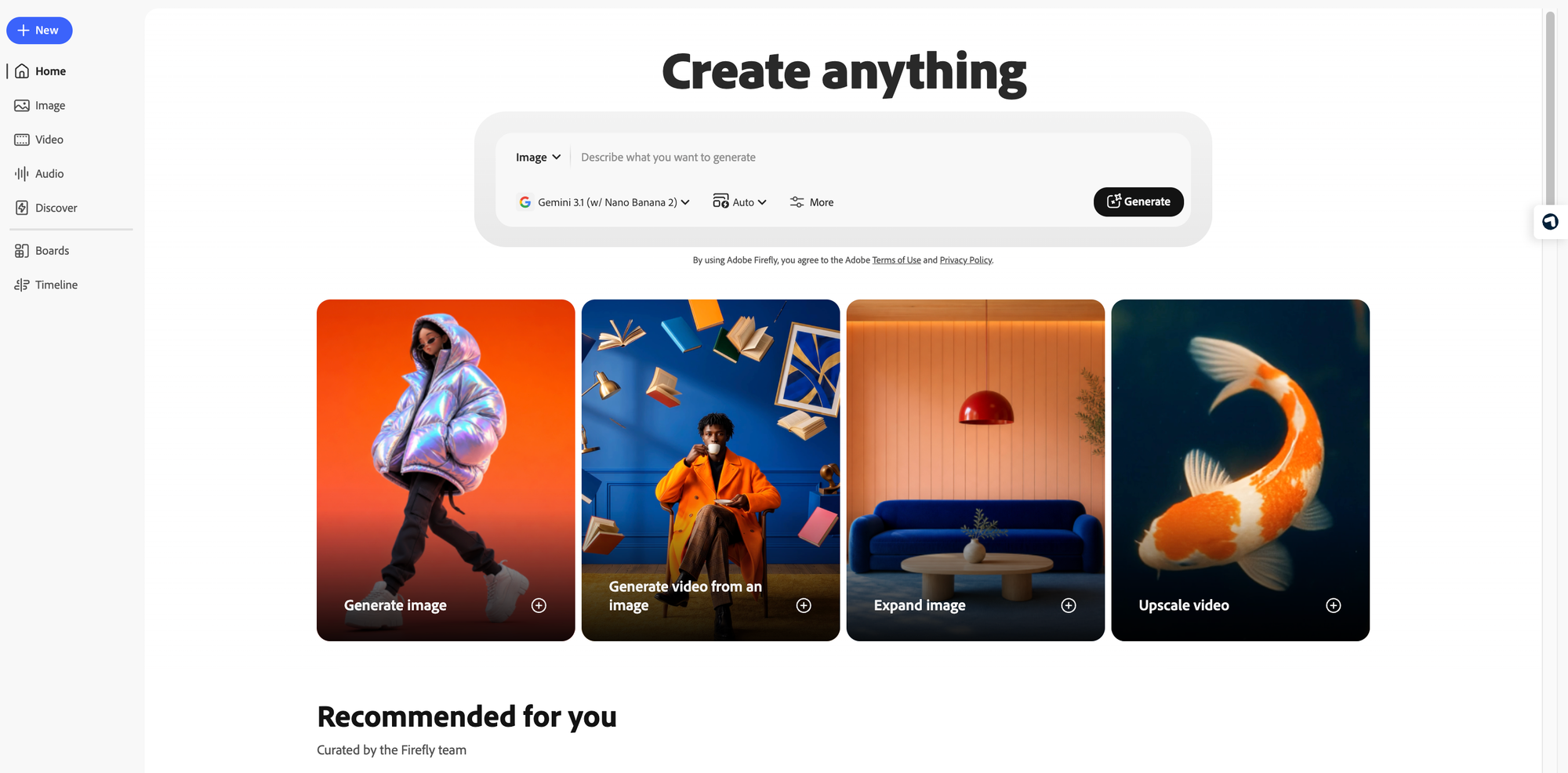
Step 1 — Open the Image module
Go to firefly.adobe.com and sign in with your Adobe ID (a free account works to start). On the home screen, choose Image to create something new, or upload an existing photo if you want to edit a shot you already have.
Step 2 — Write a clear prompt
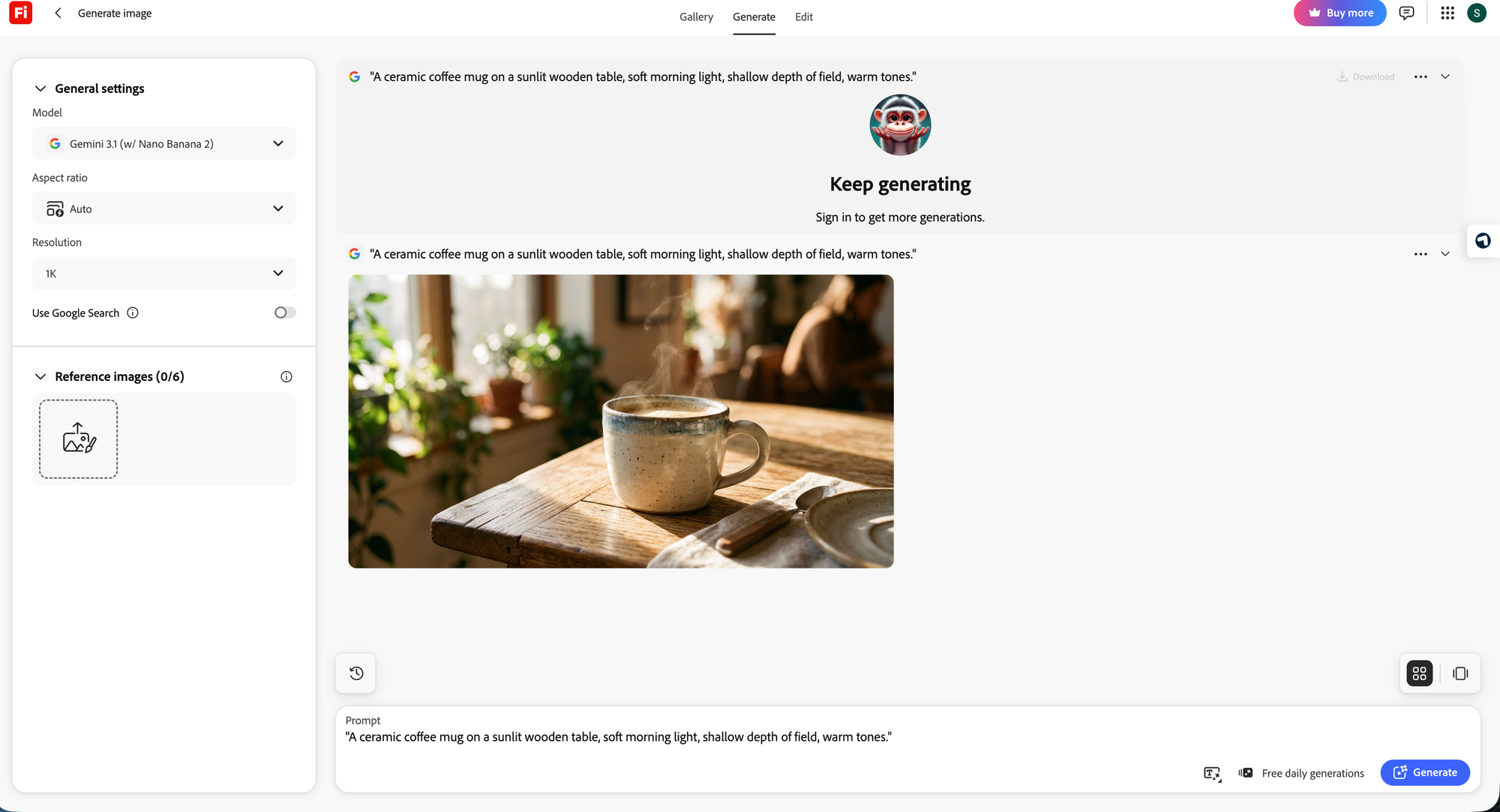
In the prompt box, describe what you want in plain language. Be specific about subject, setting, lighting, and mood. For example:
"A ceramic coffee mug on a sunlit wooden table, soft morning light, shallow depth of field, warm tones."
The more concrete your description, the closer the first result lands to your vision.
Step 3 — Choose your look
On the right-hand panel, set the aspect ratio (square for Instagram, widescreen for a website banner), pick a content type (photo or art), and apply style references if you want a particular aesthetic. Click Generate and Firefly returns a set of variations in seconds.
Step 4 — Edit with AI tools
This is where Firefly earns its reputation as top rated AI image editor software. Once you have an image, you can refine it without ever leaving the app:
- Generative Fill — paint over an area and describe what should go there. Remove a distracting object, add a new element, or extend the background.
- Generative Expand — push the canvas edges outward and let AI invent what continues beyond the frame. Perfect when a photo is cropped too tight for the format you need.
- Remove tool — erase unwanted objects, blemishes, or photobombers in a click. Yes — Firefly’s Remove tool and Generative Fill are among ways to remove objects or people from a photo, filling the space automatically so there’s no manual selection needed.
Step 5 — Download and use
When you're happy, download your image. Because Adobe Firefly is built to be commercially safe, you can take that asset straight into a campaign, a blog post, or a client deliverable.
That's the whole tutorial on how to edit an image with AI — five steps, no Photoshop expertise required. It's this gentle learning curve, paired with genuinely professional output, that makes Adobe Firefly the best AI image editor for so many first-time and everyday creators.
Part 2: How Do I Create a Video with AI?
This is the question on everyone's mind right now — and Firefly's Generate Video module is one of the most approachable answers out there.
Generate Video is powered by the Adobe Firefly Video Model. It creates brand-new video clips from text and/or image prompts, and like the rest of Adobe Firefly, it's designed to be commercially safe. You can use it to quickly communicate a creative idea, generate b-roll to fill gaps in a timeline, or add new elements to a shot. Creating videos with Adobe Firefly is fast, easy, and requires zero production experience.
There are two main paths into a video. Here's how each works.
Path A — Text to Video
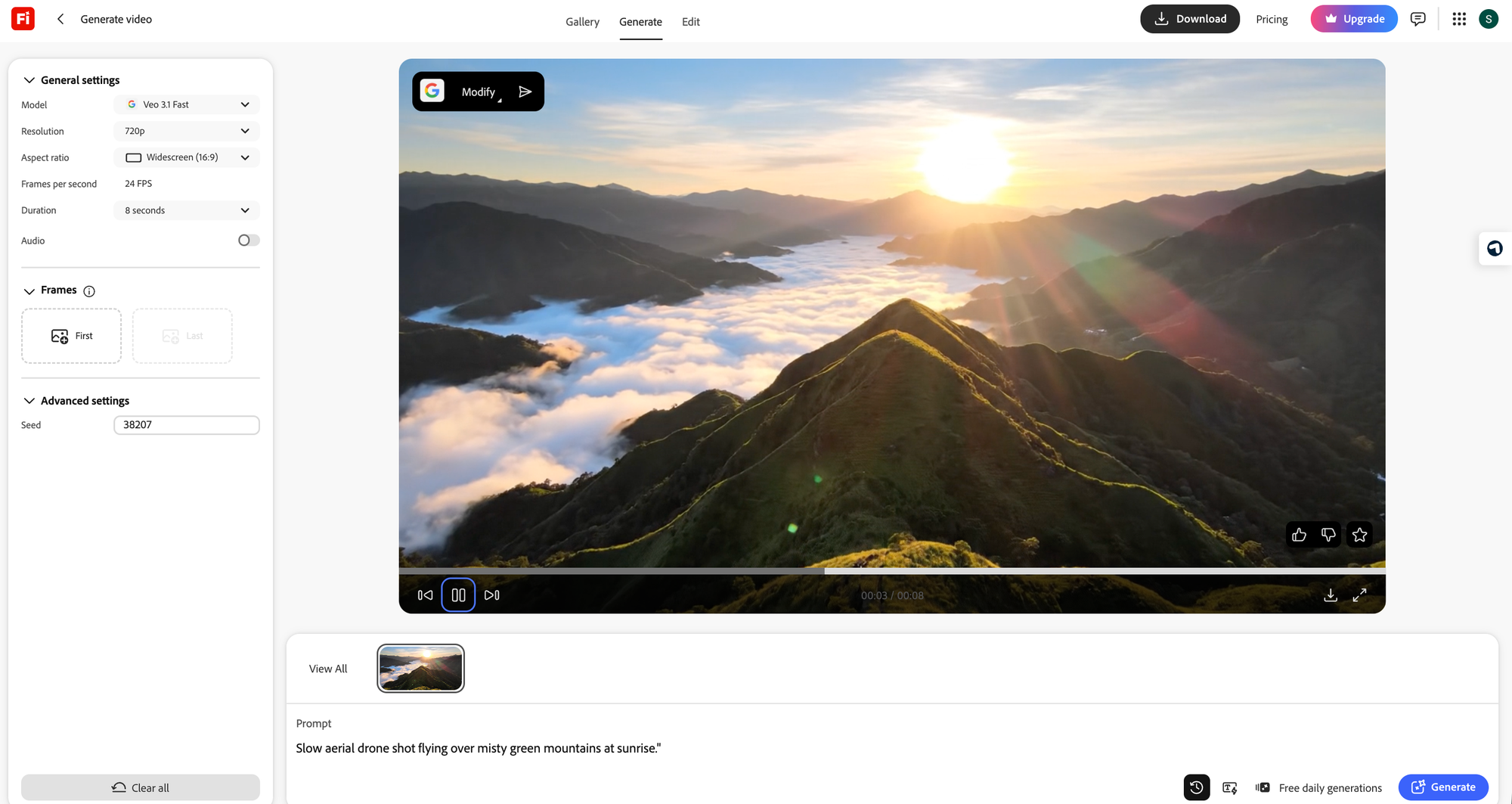
- Open the Generate Video module on firefly.adobe.com.
- Type a prompt describing the scene you want — for example: "Slow aerial drone shot flying over misty green mountains at sunrise."
- Refine the shot by choosing camera angle, motion, and style.
- Click Generate and Firefly produces a short clip ready to drop into your project.
Because you're putting your idea into motion with nothing but a sentence, this is the fastest way to test concepts. As a text-to-video AI tool, Adobe Firefly removes the gap between "I have an idea" and "I can see it moving," which is exactly why it's frequently named among the best text-to-video AI tool picks for creators who don't have a film crew on call.
Path B — Image to Video (Keyframes)
This is the part that feels like magic. You can turn a static image into a video, or pick two still images and use them as keyframes — Adobe Firefly generates the motion that carries you from the first frame to the second.
- In Generate Video, upload your starting image (and optionally a second image as your ending keyframe).
- Add a short text prompt to guide the motion or mood.
- Generate. Adobe Firefly animates the still — a product photo gently rotating, an illustration coming to life, a logo with a subtle reveal.
Using a mix of prompts and keyframe images, you can animate still shots and illustrations and transform them into captivating clips. As an image-to-video AI tool, this is brilliant for breathing motion into assets you already own — turning one good photo into a scroll-stopping social post. It's a standout feature in any honest comparison of the best image-to-video AI tool options.
Putting it to work
Once your clip is generated, you can:
- Turn a static image into a video for a social media post
- Drop a quick clip into an existing video timeline
- Generate b-roll to cover gaps in a longer edit
- Create visual effects or special-effect moments for a scene
For marketing teams specifically, that flexibility is gold. You can produce on-brand, commercially safe video content in minutes rather than days — which is why Adobe Firefly keeps showing up on shortlists for the best AI video generator for marketing. No agency, no shoot, no waiting.
Why Adobe Firefly Stands Out
A quick recap of what makes Adobe Firefly more than just another AI toy:
| What you want | How Adobe Firefly delivers |
|---|---|
| Edit images fast | Generative Fill, Expand, and Remove inside one web app |
| Create video from scratch | Text to Video with camera, motion, and style controls |
| Animate what you already have | Image-to-video keyframes from one or two stills |
| Use it for real client work | Designed to be commercially safe |
| Start with no experience | Plain-language prompts, browser-based, nothing to install |
It's this all-in-one range — image editing, text-to-video, and image-to-video under one roof — that earns Firefly its place as a leading AI image editor and a serious contender for the best AI video generator.
Adobe Firefly Pricing (India)
You can try Adobe Firefly for free, then upgrade when you need more. Here are the current India plans:
| Plan | Price (INR) | Best for |
|---|---|---|
| Firefly Free | ₹0 / month | Trying it out — a limited number of generative credits each month |
| Firefly Standard | ₹797 / month | Regular creators — around 2,000 generative credits/month |
| Firefly Pro | ₹2,394 / month | Heavy users and teams — a much larger monthly credit allowance |
Generative credits are what you spend each time you create an image or video. Plan details and credit allowances can change — always check firefly.adobe.com for the latest before you subscribe.
Start Creating Today
Whether you're a content creator chasing your next post, a marketer who needs fresh assets on a deadline, or someone simply curious about generative AI, Adobe Firefly makes it genuinely easy to go from idea to finished image or video.
Open firefly.adobe.com, type your first prompt, and see what you can make. The hardest part isn't learning the tool — it's deciding what to create first.
Pricing and feature details are accurate as of June 2026 and may change. For the most current plans and offers, visit official site.